
Overview
Every Adminest user gets a unique, private email address. Forward any email (bills, policies, school notices, receipts) and within about 30 seconds Adminest will:- Pull out the attachments and analyse them with AI
- Group everything into a single email card
- Suggest tasks for anything with a deadline
- Drop the documents into your Documents page, ready to share or search
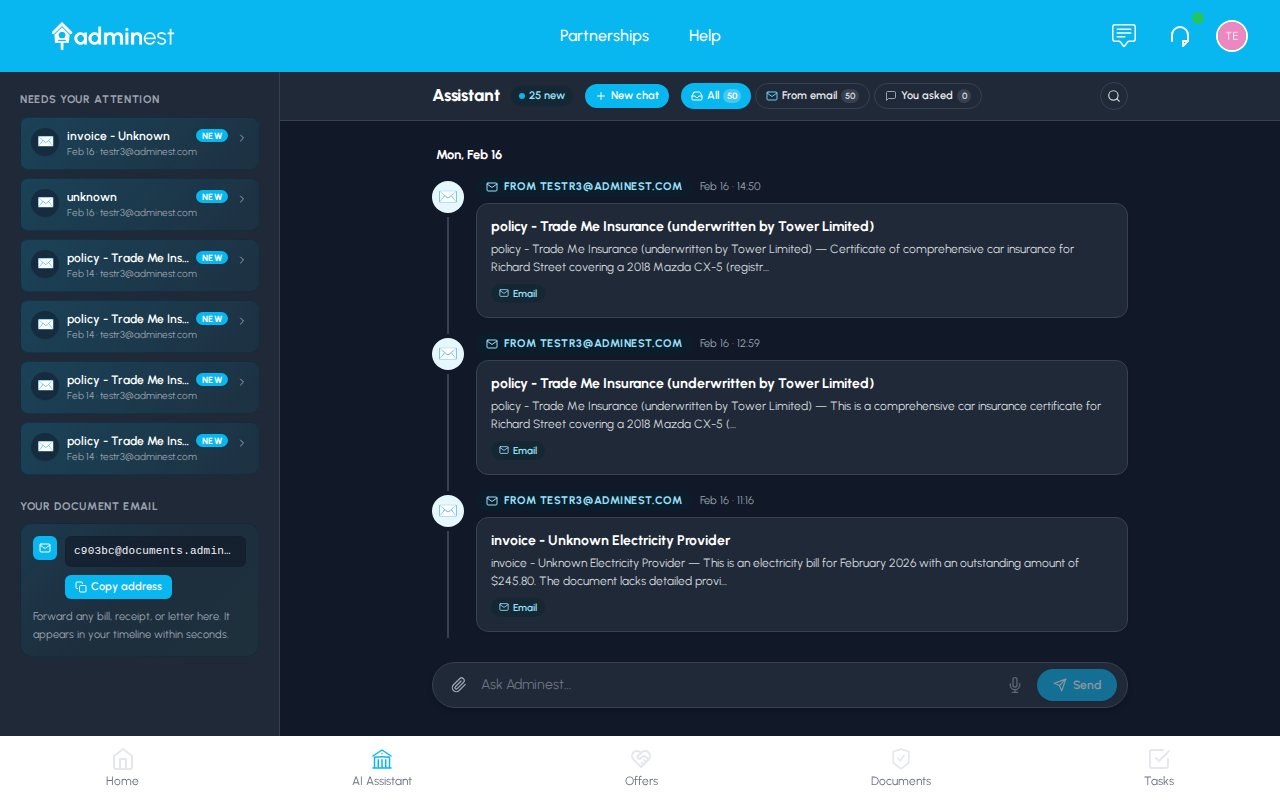
Your secure document email is shown at the top of the Dashboard
Finding your address
Your address lives at the top of the Dashboard, in a card titled Your secure document email. It looks something like9a3227@documents.adminest.com.
- The address is permanent and unique to you. Save it as a contact in your email app so you can forward to it as easily as forwarding to a person.
- You can regenerate it from Settings > Account if you ever want to start fresh. The old address will stop working immediately.
The email message card
When you forward an email, Adminest creates an email message card, a single conversation that gathers the original email, the AI summary, the attached documents, and the suggested tasks in one place.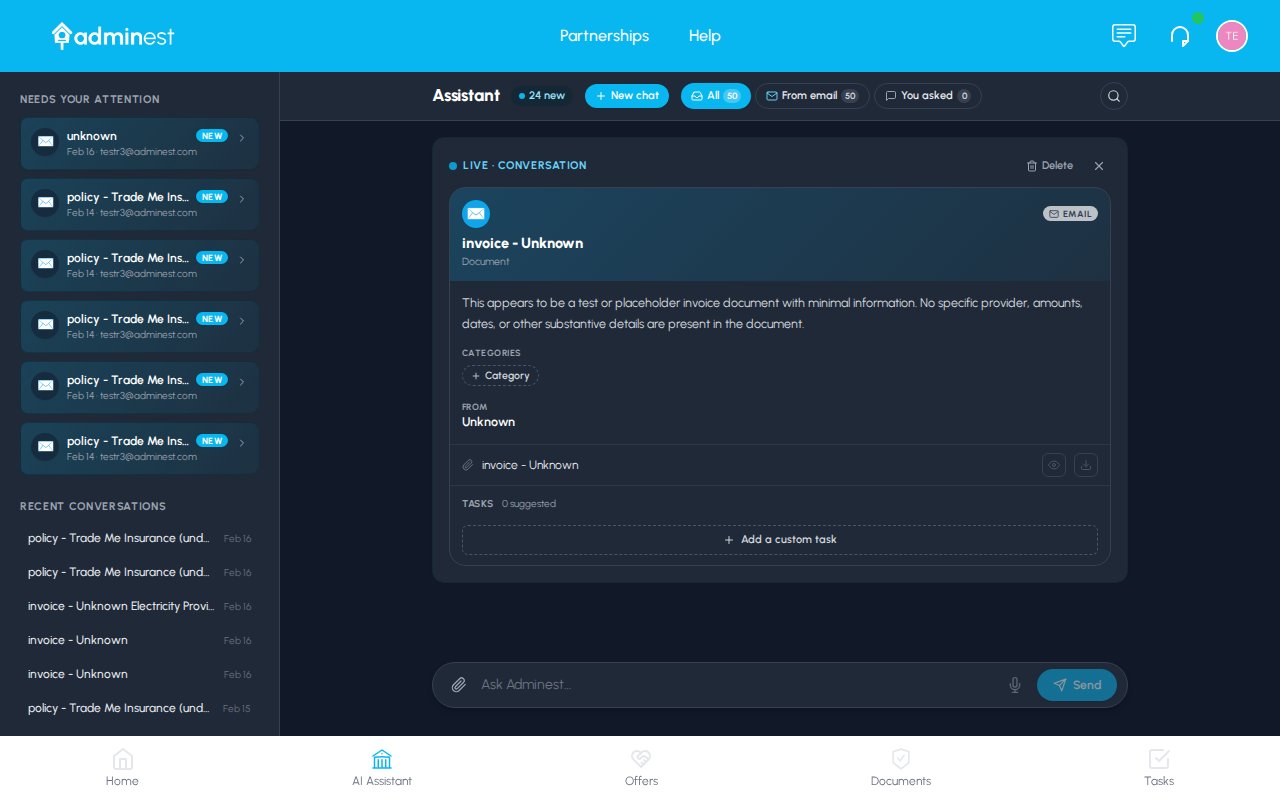
The email message card: hero banner, AI summary, suggested tasks, and attached documents in one view
Hero banner
The banner at the top is your at-a-glance recap of where the email came from:- Sender address (e.g.
noreply@aainsurance.co.nz) - The subject line as Adminest received it
- Pills for how many attachments came in, the total file size, and any auto-detected category
- A View raw email link for when you want to read the original message body
AI summary
Just below the banner sits the AI summary: a single paragraph in plain English explaining what the email is about, written so anyone in your house could read it. It pulls together facts from both the email body and the attachments, not just one or the other.AI-suggested tasks
If Adminest finds any deadlines, renewals, or actions in the email or attachments, it surfaces them as suggested tasks in a purple card. For each suggestion you see:- The task title in plain language (“Pay annual premium NZ$1,284”)
- The due date and any auto-assigned category
- An Accept button to add it to your task list
Attached documents
The card lists every attachment that came in with the email. Each one is a mini document card. You can:- See its detected type and AI badge
- Add or remove categories inline
- Open the full document detail in a side panel
Category management
You can categorise the email message itself, the attached documents, or both. Categories applied to the email group flow down to every attached document, so you don’t have to repeat yourself. Documents always pick up your custom emoji and colour for each category.How it works step-by-step
1
Find your document email
Open the Dashboard and copy your
xxxxx@documents.adminest.com address. Save it as a contact in your email app for fast forwarding.2
Forward an email
Forward any email with attachments to that address. You can forward from any of your inboxes (Gmail, Outlook, Apple Mail, your work account). They all work.
3
Wait about 30 seconds
Adminest receives the email, extracts the attachments, runs each one through AI, and assembles the email message card. You’ll get a push notification when it’s ready (if you’ve enabled them).
4
Open the card and review
The new email card appears in your AI Assistant chat list. Open it to see the AI summary, accept any suggested tasks, and tidy up categories.
What gets processed
Max size: 10 MB per attachment. Emails with multiple attachments are supported; each is processed as a separate document but bundled into the same email message card.
Setting up auto-forward
For the best experience, set up an auto-forward rule so the bills, policies, and school emails you care about land in Adminest without you lifting a finger.Gmail
1
Open settings
Click the gear icon → See all settings → Filters and Blocked Addresses.
2
Create a filter
Click Create a new filter and set criteria, e.g. From
*@aainsurance.co.nz or Subject contains invoice.3
Choose Forward it to
On the next screen, tick Forward it to and pick your Adminest document email. (You’ll need to add it as a forwarding address under Settings > Forwarding first; Gmail will send a one-time confirmation email through Adminest to verify.)
Outlook / Microsoft 365
1
Open rules
Settings → Mail → Rules.
2
Add a new rule
Click Add new rule and set conditions for the emails you want forwarded.
3
Pick Forward to
Choose Forward to as the action and paste your Adminest document email address.
Apple Mail
Use Mail.app rules on macOS, or iCloud rules on iCloud.com, to automatically forward matching emails.Privacy & security
- Your document email address is unique and private: it’s not derivable from your name or login email.
- Emails are processed over TLS and stored encrypted at rest.
- Sender authentication (SPF + DKIM) is verified to reject spoofed emails so attackers can’t impersonate, say, your insurer.
- Only PDF, image, and Word attachments are processed. Other files are ignored.
- Every attachment is scanned for viruses and malware before processing.
- You can regenerate your document email address at any time from Settings > Account.
Troubleshooting
Nothing happened after I forwarded an email
Nothing happened after I forwarded an email
- Processing usually takes 20–60 seconds. Give it a minute, then refresh the Dashboard or the AI Assistant.
- Make sure the email actually had a PDF, image, or Word attachment. Plain-text emails without attachments are ignored.
- Double-check the forwarding address for typos (the random prefix is easy to fat-finger).
- If the attachment was very large (over 10 MB), it was skipped. Try saving the file and uploading it directly via the Documents page instead.
The AI summary looks wrong
The AI summary looks wrong
- Scanned PDFs with poor image quality can confuse text extraction. Try the original digital PDF if you have it.
- Password-protected PDFs cannot be processed; Adminest can’t see inside them. Remove the password and resend.
- Some emails contain multiple unrelated documents; Adminest treats each attachment separately but its summary of the email itself may compress them. Open each document directly for its individual summary.
I'm not getting a notification
I'm not getting a notification
- Check Settings > Notifications that “Email processed” alerts are enabled.
- On iOS you may need to grant Adminest notification permission in Settings > Notifications > Safari Web Apps.
- The new email card always appears in the AI Assistant chat list regardless of notification settings.
I want a new email address
I want a new email address
- Open Settings > Account and click Regenerate document email. Your old address stops working immediately, so update any forwarding rules afterwards.
Related features
Documents
Where the attachments end up
AI Assistant
Chat with everything that’s been forwarded in
Tasks
Accept suggested tasks from the email card
Categories
Style categories with emoji and colour