
Overview
The Tasks page is the single place to see everything you need to do. Most tasks are created automatically from the documents Adminest analyses for you (renewals, bills, follow-ups), but you can add your own too.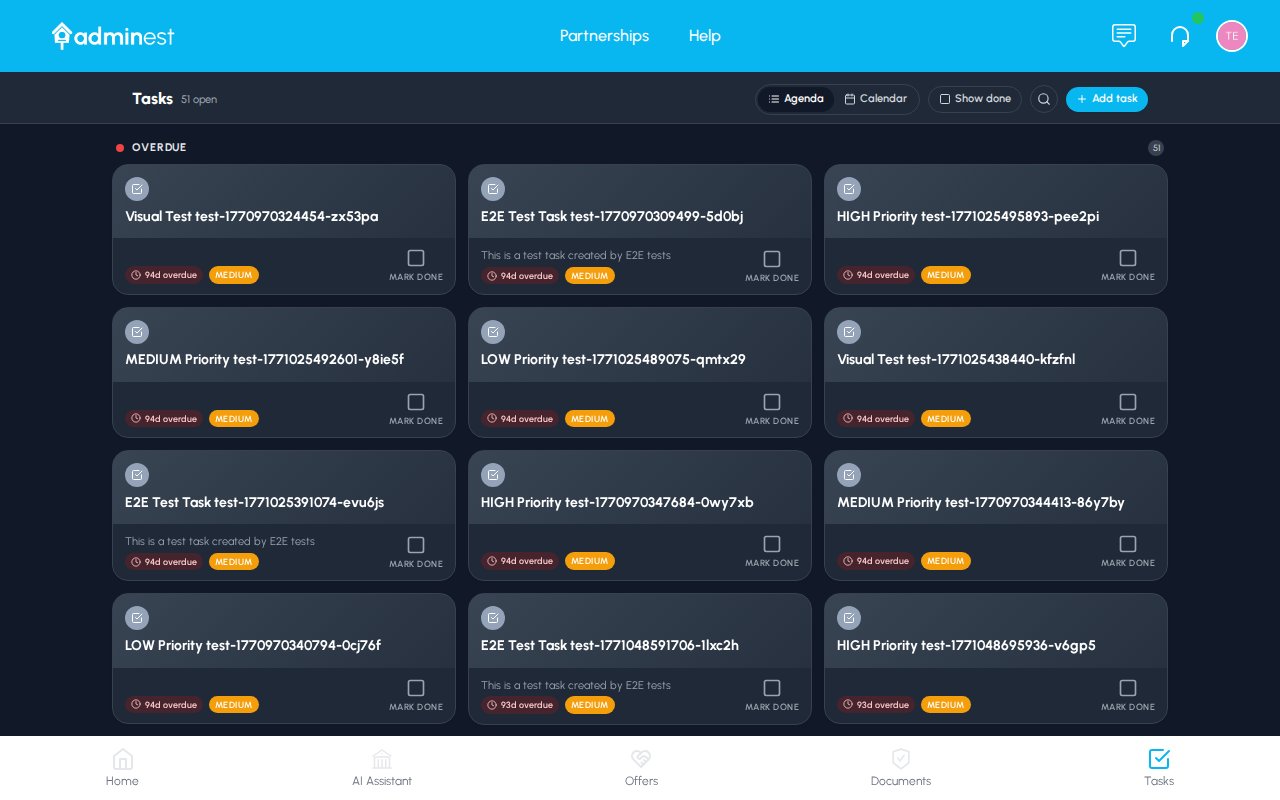
The Agenda view groups tasks into Overdue, Today, This week, and Later, so what matters most is always on top
Agenda + Calendar
Two complementary views, one tap away
Tick to complete
A single click marks a task done, with a quick undo
Recurring tasks
For things that repeat every month, year, or term
Agenda vs. Calendar
Use the toggle in the top right to switch between two views. They show the same tasks, organised differently.Agenda view
Agenda is the default. It groups your tasks into time buckets that match how you actually think about deadlines:- Overdue: anything past its due date, with how late it is
- Today: due today, sorted by time of day
- This week: the next seven days
- Later: everything further out
Calendar view
When you want to see the shape of a month, switch to Calendar.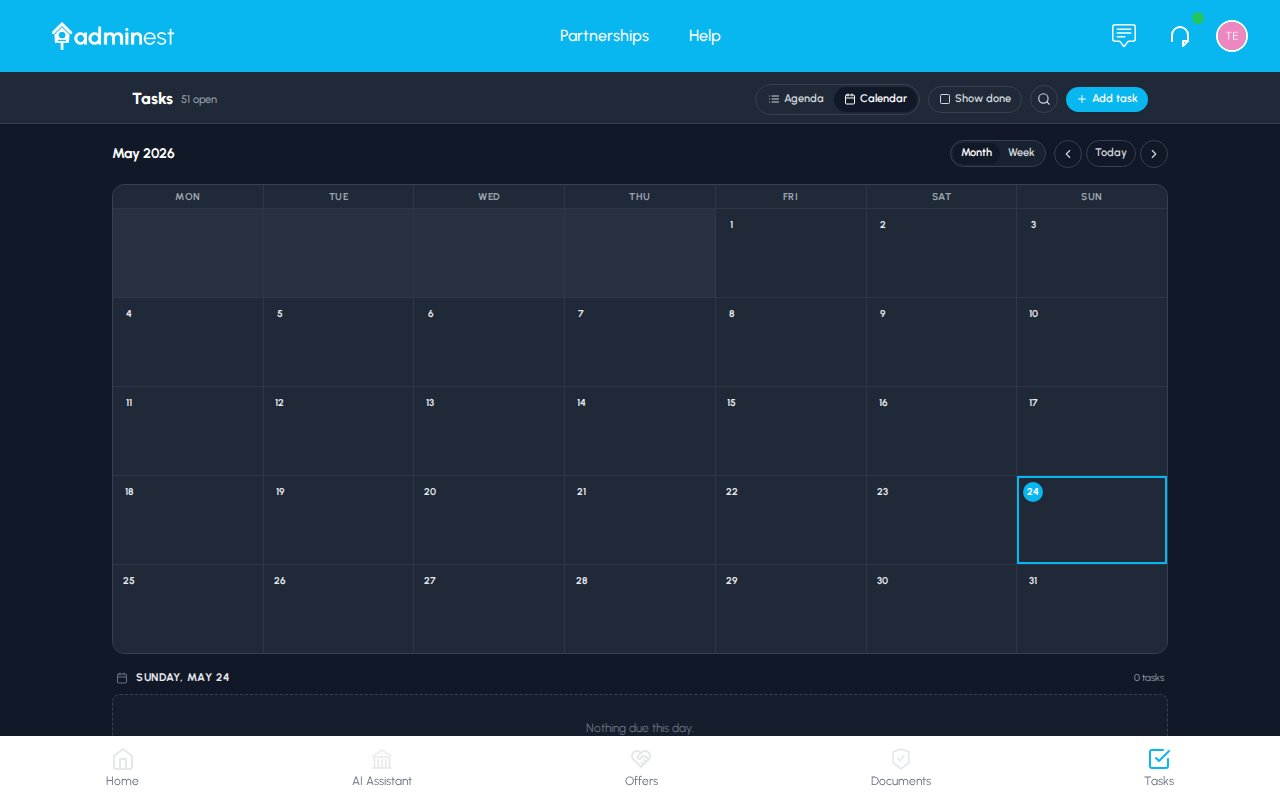
The Calendar view colour-codes each task by category so you can see your month at a glance
Ticking off completed tasks
In Agenda view, every task has a circular checkbox on the left.- One click ticks it off. The task fades and moves to the “Done” section.
- A toast appears at the bottom of the screen with an Undo button, handy if you tick the wrong one.
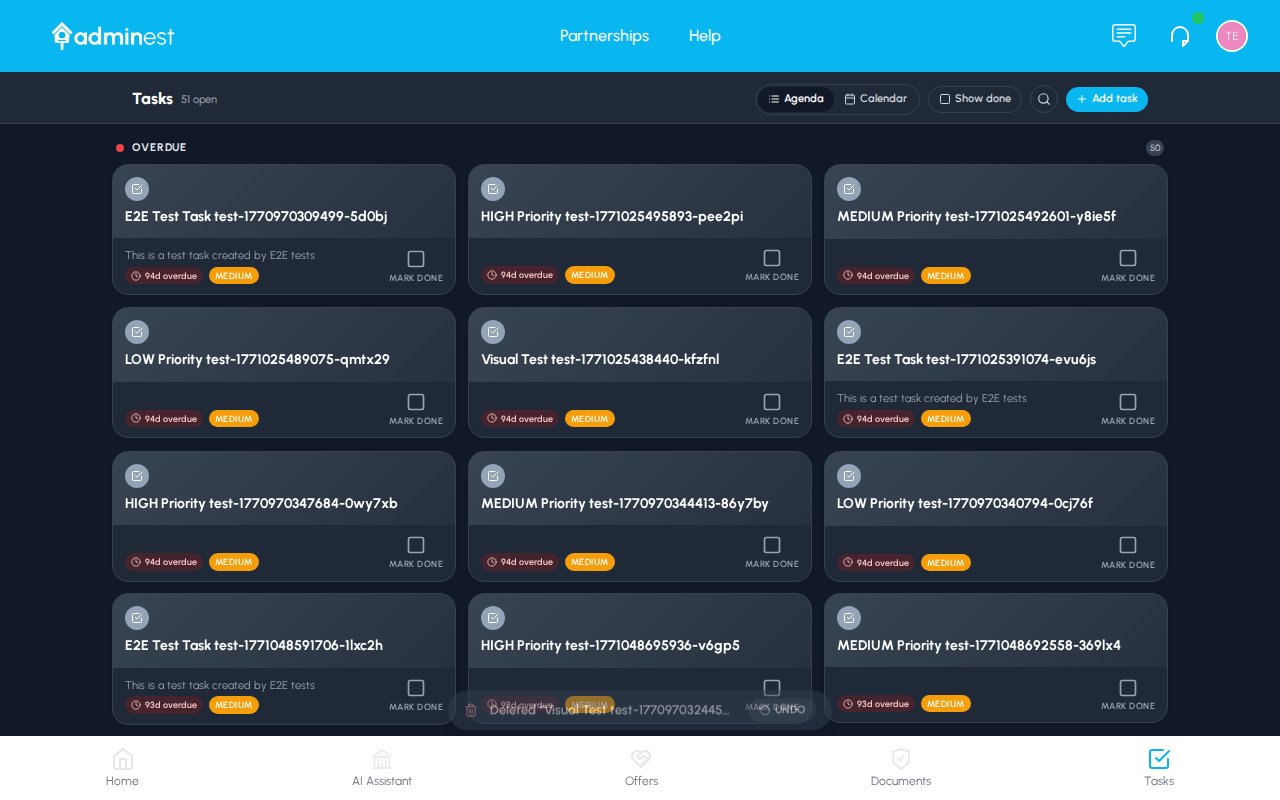
Completing a task animates it out of the list and surfaces an instant Undo
Showing completed tasks
By default, finished tasks disappear from the main list to keep it focused. Tick the Show done checkbox in the top right of the toolbar to bring them back. They appear with a strikethrough and a green “Done” tag, and you can untick them to re-open if anything was completed by mistake.The task detail panel
Click any task to open the detail panel on the right. You can edit everything in place: no separate modal, no losing your spot. What you can edit:
Changes save automatically. Close the panel with Esc or by clicking the ×.
Recurring tasks
Some things happen on a rhythm: WoF every six months, school fees every term, insurance renewals every year. Adminest detects these automatically when they’re obvious, and you can set them up manually for anything else.1
Open the task
Click the task you want to repeat.
2
Choose a repeat pattern
In the detail panel, click the Repeat field and pick a cadence: weekly, monthly, every N months, yearly, or termly.
3
Save
Changes save instantly. When you tick the task off, Adminest immediately schedules the next instance.
Creating tasks manually
1
Click + New task
The button is at the top right of the page.
2
Fill in the basics
Title, due date, and category are all you really need. Tap a category chip to file the
task where it belongs, or tap + New to create a category on the spot. Categories drive sharing with your connected people, so a
well-filed task shows up for the right household or business members automatically.
3
Optional: link to a document
If the task relates to a document you’ve already got in Adminest, link it now. That way you’ll always be one click from the source.
4
Optional: set a repeat
For anything you do on a cycle, set the repeat pattern up front.
TaskTalk: talk your tasks in
The fastest way to empty your head: tap the microphone (in the AI Assistant, on the Tasks page, or via the app-icon shortcut) and just talk. Bills you need to pay, things to book, renewals you keep forgetting. Say it all in one go, up to four minutes. When you stop, Adminest transcribes what you said, pulls out each distinct task, and shows you a checklist: “I heard 6 tasks. Tick the ones you want to create.” Every suggestion comes with a due date, priority and a suggested category from your own list. Edit anything inline, untick what you don’t want, and create the rest in one tap. A few things worth knowing:- Your recording is never stored. Audio is transcribed and immediately discarded; only the text transcript is kept (in your chat history, where you can delete it).
- Nothing is created without your say-so. Every task goes through the checklist first.
- TaskTalk respects your AI privacy settings: if you’ve switched off AI task extraction, the microphone is disabled.
Assigning tasks to your people
Every task card shows a small circle with the initials (or photo) of whoever the task is on (you, by default). Tap the circle on a card, or use the Responsible row when you open a task, to hand it to someone you’re connected with: your partner, a family member, a business partner.- If the task’s category is already shared with them, it simply lands on their list.
- If not, Adminest asks how you want to share it: share the whole category (they’ll see everything in it, now and in future) or just this task.
- The person you assign it to gets a notification, and the task appears on their Tasks page filed in their own categories: your “Porsche” task can land in their “Cars”. If Adminest isn’t sure where it belongs for them, it waits in their Unsorted tray; one tap files it, and Adminest remembers for next time.
- Use the My tasks toggle to see just what’s on your own plate. It’s at the top of the Tasks page (on a phone it lives behind the filter button next to the view switcher, together with Show done; a small dot on the button means a filter is active). Search sits in the top row beside the microphone and add buttons, same as on Documents.
- Adding a task by hand? The add-task form has a For row: pick the person and the task goes straight onto their list.
- Using TaskTalk? Each suggested task has the same person chips, and saying it out loud works too: “a task for Sarah to book the dentist” pre-selects Sarah on that task. If an assignment can’t be completed (say the connection ended), the task is still created on your list and Adminest tells you. Nothing is ever silently lost.
The People view
Switch the Tasks page to People (next to Agenda and Calendar) to see your household’s workload at a glance, a board with a lane for each person:- Unallocated: your tasks nobody has been given yet. A great Sunday-evening habit: sweep this lane and hand things out.
- Me: everything on your plate, including tasks others have assigned to you.
- One lane per connection: what they’re responsible for.
Accepting AI-suggested tasks
When Adminest analyses a document, it suggests tasks rather than creating them silently. You’ll find them in three places:- The detail panel of the document itself, in a purple “Suggested tasks” card
- The email message card for forwarded emails
- A notification when something high-priority shows up (like a power-cut warning or an overdue bill)
Filtering and finding tasks
Above the agenda you’ll find filter chips and a category list (in the sidebar).- All / Overdue / Today / This week: quick time filters
- From documents: only tasks that came from a specific document
- Category list in the sidebar: click any category to limit the page to just that group
Calendar sync
If you’ve connected Google or Microsoft Calendar, your tasks appear there as events too. The event includes the task title, a link back to Adminest, and the category colour as the event colour. Disconnect or change settings anytime in Settings > Calendar.Weekly digest email
Every Monday at 10am, you’ll get a digest email summarising:- Anything overdue
- What’s due this week
- A short note on what got done last week
Best practices
Tick from your phone
The whole point of a checkbox is one tap. Adminest is a PWA: add it to your home screen and tick off tasks from the bus.
Trust the AI start, then tweak
Accept the suggested task as-is, then nudge the date or notes if you want.
Use Show done weekly
Flip Show done on every Sunday for a quick retrospective.
Recurring beats reminders
For anything you’ll do again, set the repeat pattern instead of creating a one-off.
Related features
Documents
Most tasks start as a document
Calendar
Sync tasks to Google or Microsoft
Categories
Customise category emojis and colours