
Overview
Settings is where you customise Adminest to match how you think about your admin. The two things most people change first are their categories (colour, emoji, name) and their notification preferences. You can also export everything you have, or permanently delete your account.Categories
Pick an emoji and colour for each category
Export Data
Download everything as a JSON file
Delete Account
Permanently remove your account and data
Notifications
Choose what you want to be reminded about
Category emoji and colour
Categories are how Adminest groups your documents and tasks. Each category has a name, an emoji, and a colour, and you control all three. Whatever you pick shows up everywhere: sidebar, document cards, task chips, calendar events.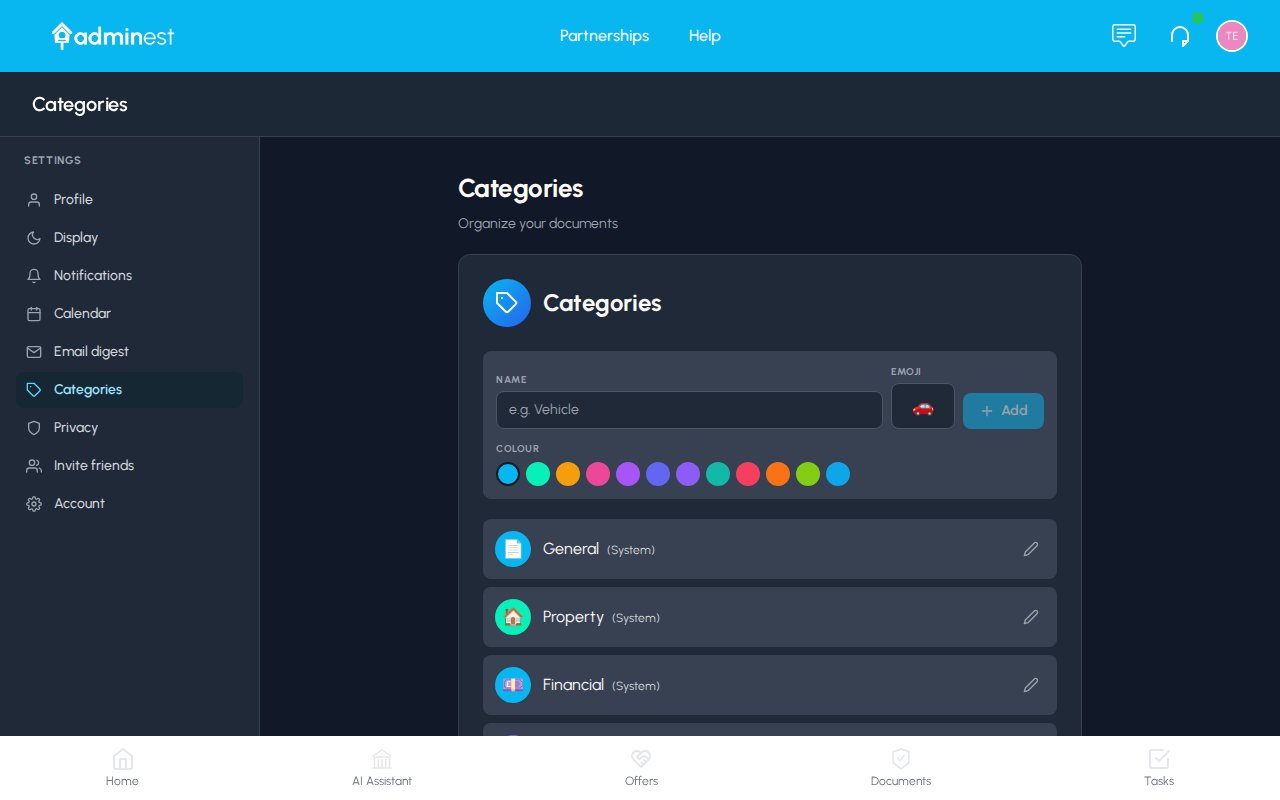
The Categories tab in Settings: pick an emoji, pick a colour, see a live preview
Adding a new category
1
Go to Settings > Categories
Click your avatar → Settings → Categories tab.
2
Click + New category
A name input, colour swatch row, and emoji grid appear in the panel on the right.
3
Name it
Keep names short; they have to fit on a small pill on a document card. “School”, “Insurance”, “Pet” all work well.
4
Pick a colour and an emoji
Tap any colour swatch and any emoji to see a live preview at the top of the panel.
5
Click Save
The new category appears in the list on the left, immediately available to assign to documents and tasks.
Editing an existing category
Click any category in the list to open it for editing. You can change the name, colour, and emoji at any time. Changes apply instantly to every document and task tagged with that category.Inline creation from documents
You don’t have to come to Settings to create a category. On any document card, click the + next to the category pills, type a new name, and hit Create “Name”. The category is created on the spot. You can come back to Settings later to assign it a colour and emoji.Deleting a category
Click the ⋯ menu on any category and choose Delete. You’ll be asked to confirm, and to decide what happens to the documents and tasks that were using it (un-tag them, or move them to another category).A small number of categories are created automatically by Adminest when you first sign up (Insurance, Bills, Property…). These are seed categories: you can rename, recolour, re-emoji, or delete any of them.
Exporting your data
Under the NZ Privacy Act 2020, you have the right to access all personal data we hold about you. Adminest makes this easy with a one-click export.1
Go to Settings > Account
Click your avatar → Settings → Account tab.
2
Click Export Data
Adminest compiles a JSON archive and downloads it to your device.
3
Review your data
The file includes your profile, documents, tasks, categories, chat history, and email processing records.
- Profile: name, email, preferences
- Documents: metadata and AI analysis for everything you’ve uploaded
- Tasks: all tasks with due dates, categories, status, and notes
- Categories: your custom categories with emoji and colour
- Chat history: every AI Assistant conversation
- Email records: your email-to-document processing history
Deleting your account
Account deletion is permanent and cannot be undone. All your data is removed from Adminest, including documents stored in cloud storage.1
Go to Settings > Account
Open the Account tab.
2
Scroll to the Danger Zone
Click Delete Account.
3
Confirm deletion
Type DELETE MY ACCOUNT exactly as shown to confirm. This safeguard prevents accidental deletion.
4
Account removed
Once confirmed, all your data is permanently deleted and you’ll be signed out automatically.
What gets deleted
When you delete your account, the following is permanently removed:- Your user profile and preferences
- All uploaded documents and their cloud-stored files
- All tasks, categories, and AI suggestions
- Every AI Assistant conversation
- Email processing records and your document email alias
- Push notification subscriptions
- Account connections (people you’d shared with)
- Support tickets
- Security and privacy settings
Before you delete
We recommend exporting your data before deleting your account. Once you delete, your data cannot be recovered.Related features
Documents
See your categories on every document card
Tasks
Filter and colour-code by category
Privacy
Manage cookies, GPC, and AI consent