> ## Documentation Index
> Fetch the complete documentation index at: https://docs.adminest.com/llms.txt
> Use this file to discover all available pages before exploring further.
# Tasks
> Never miss a deadline — Adminest turns your documents into a clean list of things to do
## Overview
The Tasks page is the single place to see everything you need to do. Most tasks are created automatically from the documents Adminest analyses for you — renewals, bills, follow-ups — but you can add your own too.
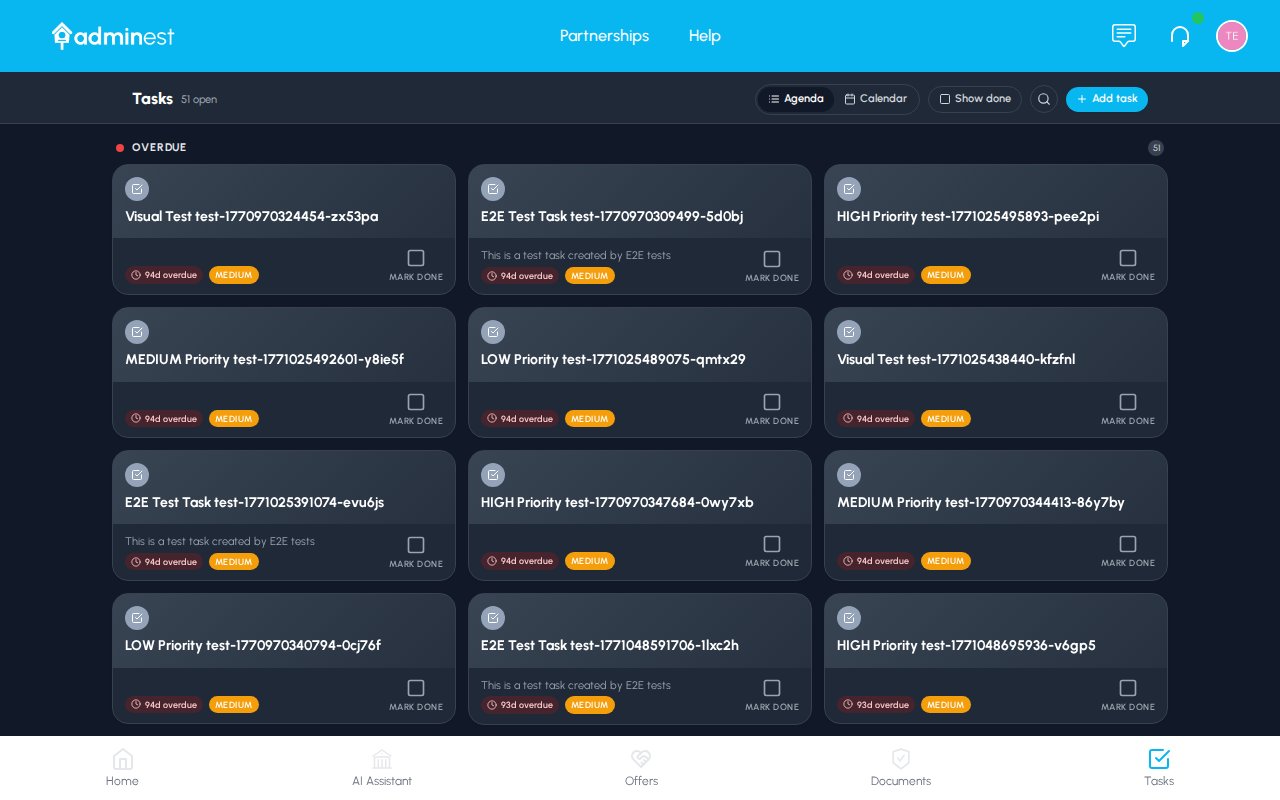 Two complementary views, one tap away
A single click marks a task done, with a quick undo
For things that repeat every month, year, or term
## Agenda vs. Calendar
Use the toggle in the top right to switch between two views — they show the same tasks, organised differently.
### Agenda view
Agenda is the default. It groups your tasks into time buckets that match how you actually think about deadlines:
* **Overdue** — anything past its due date, with how late it is
* **Today** — due today, sorted by time of day
* **This week** — the next seven days
* **Later** — everything further out
Within each section, tasks are sorted by due date. Use the filter chips above the list to limit to a single category, a single source (e.g. "From documents"), or just overdue items.
### Calendar view
When you want to see the shape of a month, switch to Calendar.
Two complementary views, one tap away
A single click marks a task done, with a quick undo
For things that repeat every month, year, or term
## Agenda vs. Calendar
Use the toggle in the top right to switch between two views — they show the same tasks, organised differently.
### Agenda view
Agenda is the default. It groups your tasks into time buckets that match how you actually think about deadlines:
* **Overdue** — anything past its due date, with how late it is
* **Today** — due today, sorted by time of day
* **This week** — the next seven days
* **Later** — everything further out
Within each section, tasks are sorted by due date. Use the filter chips above the list to limit to a single category, a single source (e.g. "From documents"), or just overdue items.
### Calendar view
When you want to see the shape of a month, switch to Calendar.
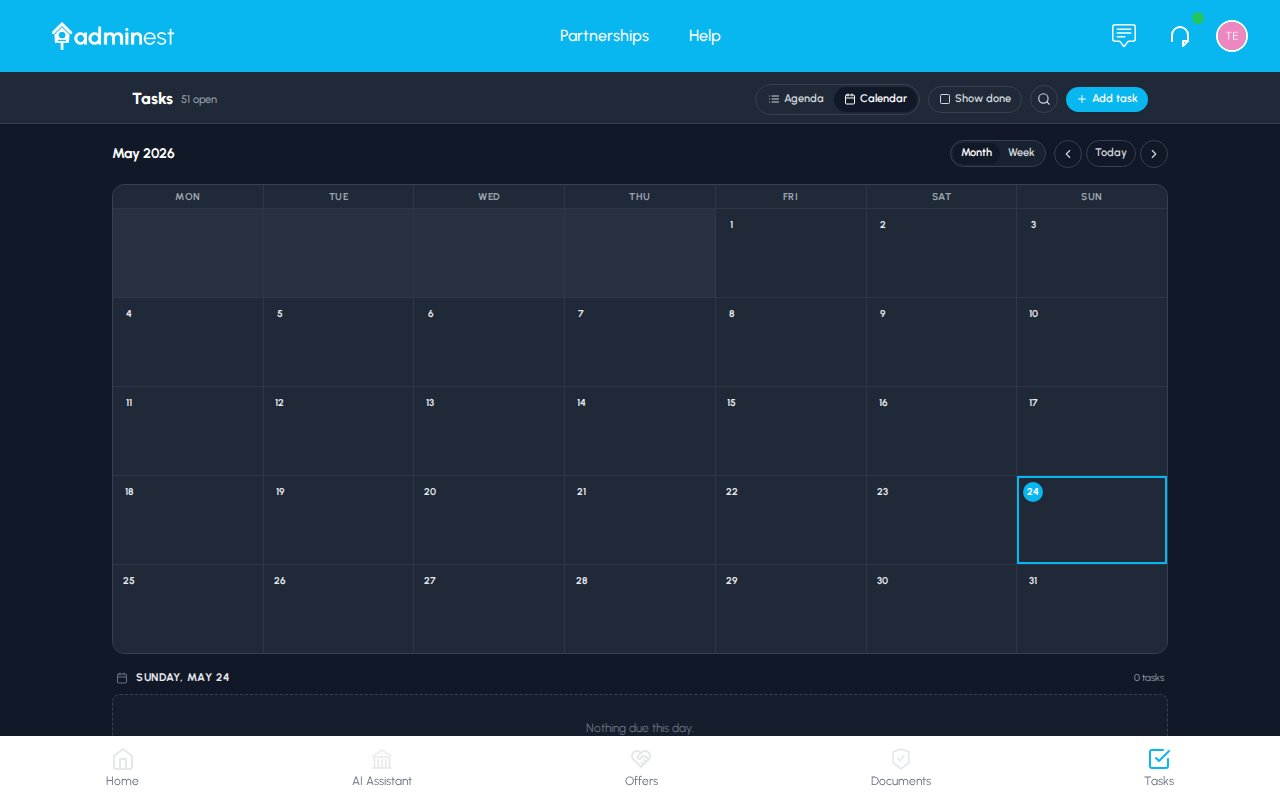 Tasks appear as coloured chips on the day they're due, coloured by the category emoji and colour you've chosen in [Settings](/guide/account#category-emoji-and-colour). Click a day to focus on it, or click any chip to open the task in the detail panel.
The Calendar view is read-only for now — to drag tasks between days or change times, open the task and edit it from the detail panel.
## Ticking off completed tasks
In Agenda view, every task has a circular checkbox on the left.
* **One click** ticks it off. The task fades and moves to the "Done" section.
* **A toast appears** at the bottom of the screen with an **Undo** button — handy if you tick the wrong one.
Tasks appear as coloured chips on the day they're due, coloured by the category emoji and colour you've chosen in [Settings](/guide/account#category-emoji-and-colour). Click a day to focus on it, or click any chip to open the task in the detail panel.
The Calendar view is read-only for now — to drag tasks between days or change times, open the task and edit it from the detail panel.
## Ticking off completed tasks
In Agenda view, every task has a circular checkbox on the left.
* **One click** ticks it off. The task fades and moves to the "Done" section.
* **A toast appears** at the bottom of the screen with an **Undo** button — handy if you tick the wrong one.
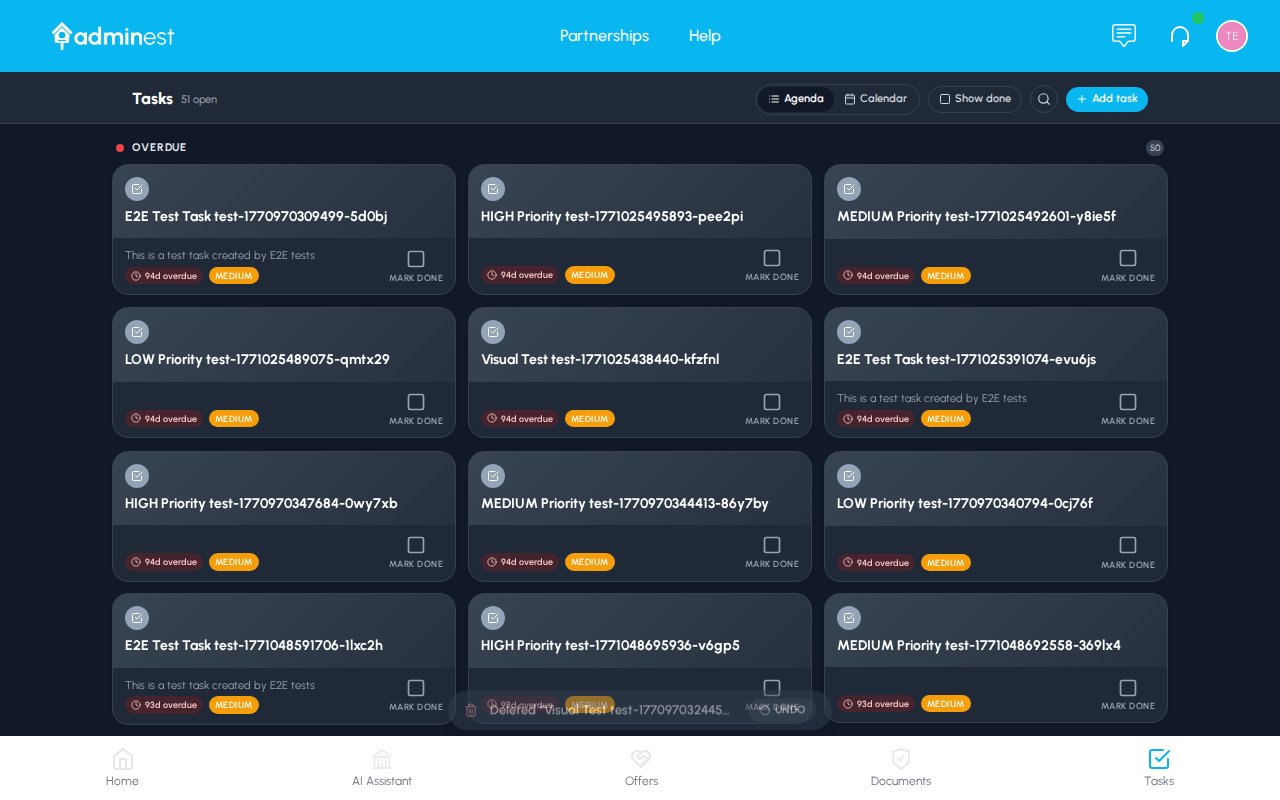 The Undo toast stays visible for about five seconds. After that the task is officially done — though you can always bring it back from the "Done" list below.
## Showing completed tasks
By default, finished tasks disappear from the main list to keep it focused. Tick the **Show done** checkbox in the top right of the toolbar to bring them back. They appear with a strikethrough and a green "Done" tag, and you can untick them to re-open if anything was completed by mistake.
## The task detail panel
Click any task to open the detail panel on the right. You can edit everything in place — no separate modal, no losing your spot.
What you can edit:
| Field | Notes |
| --------------------- | ------------------------------------------------------------------ |
| **Title** | Click to edit the title inline |
| **Status** | Pending, In progress, Done — switches via segmented control |
| **Due date and time** | Pick a date and an optional time |
| **Repeat** | None, weekly, monthly, every N months, yearly, termly… |
| **Category** | Tag with one or more categories — same picker as on document cards |
| **Linked document** | Click to jump straight to the document this task came from |
| **Notes** | Free-form notes for context the AI didn't capture |
Changes save automatically. Close the panel with **Esc** or by clicking the **×**.
## Recurring tasks
Some things happen on a rhythm — WoF every six months, school fees every term, insurance renewals every year. Adminest detects these automatically when they're obvious, and you can set them up manually for anything else.
Click the task you want to repeat.
In the detail panel, click the **Repeat** field and pick a cadence — weekly, monthly, every N months, yearly, or termly.
Changes save instantly. When you tick the task off, Adminest immediately schedules the next instance.
Recurring tasks show a small rotate icon in the agenda. The next occurrence is created the moment you complete the current one — so you can never lose track of a cycle by ticking too early.
## Creating tasks manually
The button is at the top right of the page.
Title, due date, and category are all you really need. Adminest fills in sensible defaults.
If the task relates to a document you've already got in Adminest, link it now — that way you'll always be one click from the source.
For anything you do on a cycle, set the repeat pattern up front.
## Accepting AI-suggested tasks
When Adminest analyses a document, it suggests tasks rather than creating them silently. You'll find them in three places:
1. The **detail panel** of the document itself, in a purple "Suggested tasks" card
2. The **email message card** for forwarded emails
3. A **notification** when something high-priority shows up (like a power-cut warning or an overdue bill)
Click **Accept** to add the suggested task to your list. You can edit anything about it first — the AI just makes a sensible first pass.
## Filtering and finding tasks
Above the agenda you'll find filter chips and a category list (in the sidebar).
* **All / Overdue / Today / This week** — quick time filters
* **From documents** — only tasks that came from a specific document
* **Category list in the sidebar** — click any category to limit the page to just that group
Use the search bar to find a specific task by title or description.
## Calendar sync
If you've connected [Google or Microsoft Calendar](/guide/calendar), your tasks appear there as events too. The event includes the task title, a link back to Adminest, and the category colour as the event colour.
Disconnect or change settings anytime in **Settings > Calendar**.
## Weekly digest email
Every Monday at 10am, you'll get a digest email summarising:
* Anything overdue
* What's due this week
* A short note on what got done last week
You can change the day or turn the digest off entirely in **Settings > Notifications**.
## Best practices
The whole point of a checkbox is one tap. Adminest is a PWA — add it to your home screen and tick off tasks from the bus.
Accept the suggested task as-is, then nudge the date or notes if you want.
Flip Show done on every Sunday for a quick retrospective.
For anything you'll do again, set the repeat pattern instead of creating a one-off.
## Related features
Most tasks start as a document
Sync tasks to Google or Microsoft
Customise category emojis and colours
The Undo toast stays visible for about five seconds. After that the task is officially done — though you can always bring it back from the "Done" list below.
## Showing completed tasks
By default, finished tasks disappear from the main list to keep it focused. Tick the **Show done** checkbox in the top right of the toolbar to bring them back. They appear with a strikethrough and a green "Done" tag, and you can untick them to re-open if anything was completed by mistake.
## The task detail panel
Click any task to open the detail panel on the right. You can edit everything in place — no separate modal, no losing your spot.
What you can edit:
| Field | Notes |
| --------------------- | ------------------------------------------------------------------ |
| **Title** | Click to edit the title inline |
| **Status** | Pending, In progress, Done — switches via segmented control |
| **Due date and time** | Pick a date and an optional time |
| **Repeat** | None, weekly, monthly, every N months, yearly, termly… |
| **Category** | Tag with one or more categories — same picker as on document cards |
| **Linked document** | Click to jump straight to the document this task came from |
| **Notes** | Free-form notes for context the AI didn't capture |
Changes save automatically. Close the panel with **Esc** or by clicking the **×**.
## Recurring tasks
Some things happen on a rhythm — WoF every six months, school fees every term, insurance renewals every year. Adminest detects these automatically when they're obvious, and you can set them up manually for anything else.
Click the task you want to repeat.
In the detail panel, click the **Repeat** field and pick a cadence — weekly, monthly, every N months, yearly, or termly.
Changes save instantly. When you tick the task off, Adminest immediately schedules the next instance.
Recurring tasks show a small rotate icon in the agenda. The next occurrence is created the moment you complete the current one — so you can never lose track of a cycle by ticking too early.
## Creating tasks manually
The button is at the top right of the page.
Title, due date, and category are all you really need. Adminest fills in sensible defaults.
If the task relates to a document you've already got in Adminest, link it now — that way you'll always be one click from the source.
For anything you do on a cycle, set the repeat pattern up front.
## Accepting AI-suggested tasks
When Adminest analyses a document, it suggests tasks rather than creating them silently. You'll find them in three places:
1. The **detail panel** of the document itself, in a purple "Suggested tasks" card
2. The **email message card** for forwarded emails
3. A **notification** when something high-priority shows up (like a power-cut warning or an overdue bill)
Click **Accept** to add the suggested task to your list. You can edit anything about it first — the AI just makes a sensible first pass.
## Filtering and finding tasks
Above the agenda you'll find filter chips and a category list (in the sidebar).
* **All / Overdue / Today / This week** — quick time filters
* **From documents** — only tasks that came from a specific document
* **Category list in the sidebar** — click any category to limit the page to just that group
Use the search bar to find a specific task by title or description.
## Calendar sync
If you've connected [Google or Microsoft Calendar](/guide/calendar), your tasks appear there as events too. The event includes the task title, a link back to Adminest, and the category colour as the event colour.
Disconnect or change settings anytime in **Settings > Calendar**.
## Weekly digest email
Every Monday at 10am, you'll get a digest email summarising:
* Anything overdue
* What's due this week
* A short note on what got done last week
You can change the day or turn the digest off entirely in **Settings > Notifications**.
## Best practices
The whole point of a checkbox is one tap. Adminest is a PWA — add it to your home screen and tick off tasks from the bus.
Accept the suggested task as-is, then nudge the date or notes if you want.
Flip Show done on every Sunday for a quick retrospective.
For anything you'll do again, set the repeat pattern instead of creating a one-off.
## Related features
Most tasks start as a document
Sync tasks to Google or Microsoft
Customise category emojis and colours