> ## Documentation Index
> Fetch the complete documentation index at: https://docs.adminest.com/llms.txt
> Use this file to discover all available pages before exploring further.
# Documents
> Upload, organise, and get AI insight on everything in your life admin pile
## Overview
The Documents page is where everything you've uploaded or forwarded into Adminest lives. Every document is laid out as a card so you can see the headline, the AI summary, and the categories at a glance — without opening anything.
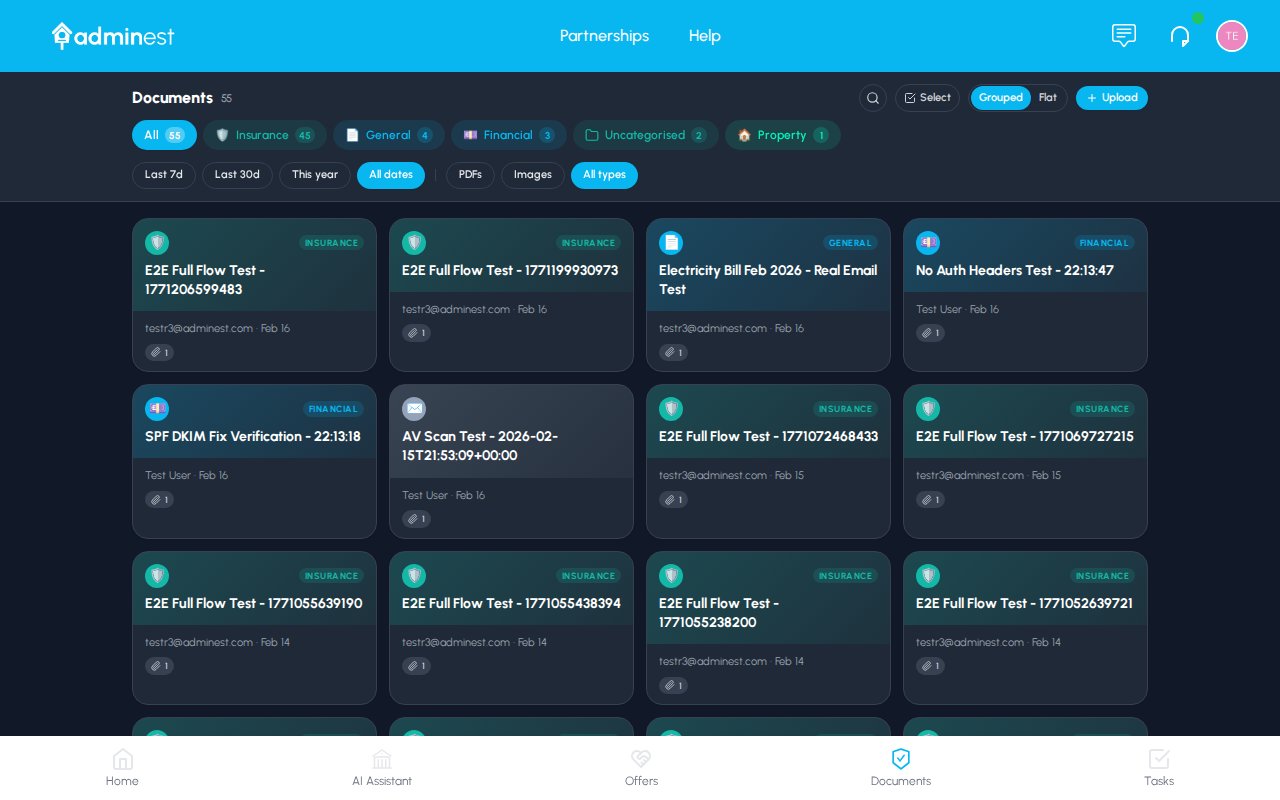 Skim summaries, categories, and source at a glance
Click any card to slide open the full breakdown
Categorise, share, or delete many at once
## Finding documents
### Search
The search bar at the top of the page searches across:
* Document titles and senders
* Extracted text content (everything inside your PDFs and images)
* AI summaries
You can also ask plain-English questions like "show me my insurance documents" or "what bills are due this month?" — the search bar feeds into the AI Assistant when it doesn't recognise a literal match.
### Filters
The filter chips along the top let you narrow the list quickly.
* **All** — every document you have access to
* **Each category** — filter to one type (Insurance, Utilities, Property…). Categories you create appear here automatically.
* **From email** — only documents that arrived via your secure email address
Click **Filters** in the top bar to combine filters or set date ranges, file types, and senders.
### View toggle
Use the **Grid / List** toggle in the top right to switch between the card grid (great for visual scanning) and a compact list (great when you have hundreds of documents).
## Uploading documents
Click **Upload** in the top right of the Documents page.
Drag one or many files in, or click to browse. You can upload PDFs, images (PNG, JPG, JPEG), and Word documents.
Most documents are analysed in 10–30 seconds. You'll see a progress badge on the new card while it works.
The card flips from "Processing" to the AI-generated headline once it's done. Click it to open the detail panel.
**Supported formats:** PDF, PNG, JPG, JPEG, DOC, DOCX, TXT. **Max size:** 10 MB per file. All uploads are virus-scanned before processing.
You don't have to upload everything yourself — forward emails to your [secure document address](/guide/email-to-document) and Adminest will process the attachments automatically.
## Card anatomy
Every document card shows you, in order:
1. **A coloured icon** that reflects the document type (insurance shield, bill lightbulb, contract scroll, etc.)
2. **The title** — usually the sender + subject, or the filename
3. **Source line** — where the document came from (e.g. "AA Insurance · PDF · 2 days ago" or "From email · Auckland Council")
4. **An AI badge** — present when Adminest has finished analysing the document
5. **A two-line AI summary** — the most important facts (amounts, due dates, policy numbers)
6. **Category pills** — colour-coded categories. Click the **+** to add another, click the **×** on hover to remove.
## The detail panel
Clicking a card slides open a panel on the right. The grid stays visible so you don't lose your place.
Skim summaries, categories, and source at a glance
Click any card to slide open the full breakdown
Categorise, share, or delete many at once
## Finding documents
### Search
The search bar at the top of the page searches across:
* Document titles and senders
* Extracted text content (everything inside your PDFs and images)
* AI summaries
You can also ask plain-English questions like "show me my insurance documents" or "what bills are due this month?" — the search bar feeds into the AI Assistant when it doesn't recognise a literal match.
### Filters
The filter chips along the top let you narrow the list quickly.
* **All** — every document you have access to
* **Each category** — filter to one type (Insurance, Utilities, Property…). Categories you create appear here automatically.
* **From email** — only documents that arrived via your secure email address
Click **Filters** in the top bar to combine filters or set date ranges, file types, and senders.
### View toggle
Use the **Grid / List** toggle in the top right to switch between the card grid (great for visual scanning) and a compact list (great when you have hundreds of documents).
## Uploading documents
Click **Upload** in the top right of the Documents page.
Drag one or many files in, or click to browse. You can upload PDFs, images (PNG, JPG, JPEG), and Word documents.
Most documents are analysed in 10–30 seconds. You'll see a progress badge on the new card while it works.
The card flips from "Processing" to the AI-generated headline once it's done. Click it to open the detail panel.
**Supported formats:** PDF, PNG, JPG, JPEG, DOC, DOCX, TXT. **Max size:** 10 MB per file. All uploads are virus-scanned before processing.
You don't have to upload everything yourself — forward emails to your [secure document address](/guide/email-to-document) and Adminest will process the attachments automatically.
## Card anatomy
Every document card shows you, in order:
1. **A coloured icon** that reflects the document type (insurance shield, bill lightbulb, contract scroll, etc.)
2. **The title** — usually the sender + subject, or the filename
3. **Source line** — where the document came from (e.g. "AA Insurance · PDF · 2 days ago" or "From email · Auckland Council")
4. **An AI badge** — present when Adminest has finished analysing the document
5. **A two-line AI summary** — the most important facts (amounts, due dates, policy numbers)
6. **Category pills** — colour-coded categories. Click the **+** to add another, click the **×** on hover to remove.
## The detail panel
Clicking a card slides open a panel on the right. The grid stays visible so you don't lose your place.
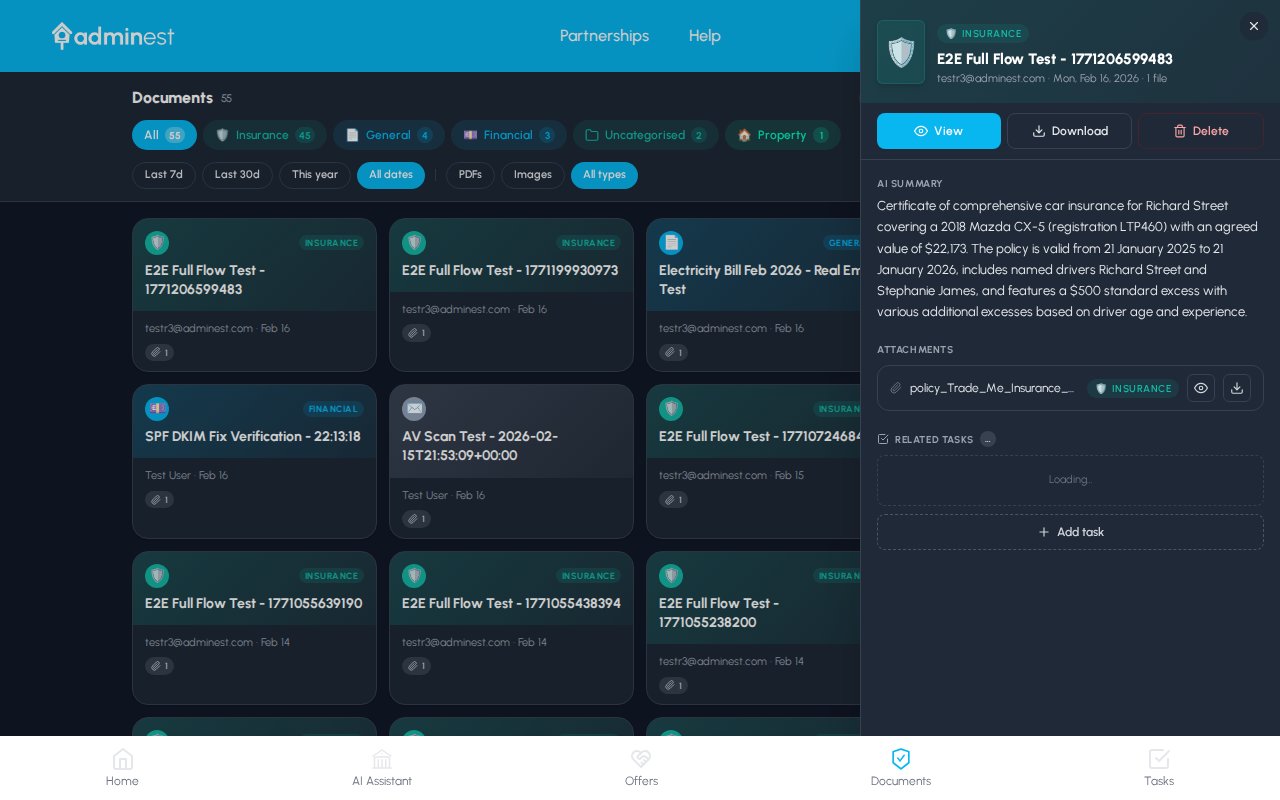 In the detail panel you can:
* Read the **full AI summary** — a natural-language explanation of what the document is and what matters in it
* See **key details** as a clean key/value list (policy number, dates, amounts, account numbers)
* **Add or remove categories** without leaving the panel
* **Open the original** PDF, **download** a copy, or **share** it with one of your connections
* See and accept any **suggested tasks** Adminest has extracted (renewals, payment deadlines, follow-ups)
Use the arrow keys or simply click another card to move through your documents — the panel updates in place.
## Managing categories on a card
You can edit a document's categories without opening the detail panel.
In the detail panel you can:
* Read the **full AI summary** — a natural-language explanation of what the document is and what matters in it
* See **key details** as a clean key/value list (policy number, dates, amounts, account numbers)
* **Add or remove categories** without leaving the panel
* **Open the original** PDF, **download** a copy, or **share** it with one of your connections
* See and accept any **suggested tasks** Adminest has extracted (renewals, payment deadlines, follow-ups)
Use the arrow keys or simply click another card to move through your documents — the panel updates in place.
## Managing categories on a card
You can edit a document's categories without opening the detail panel.
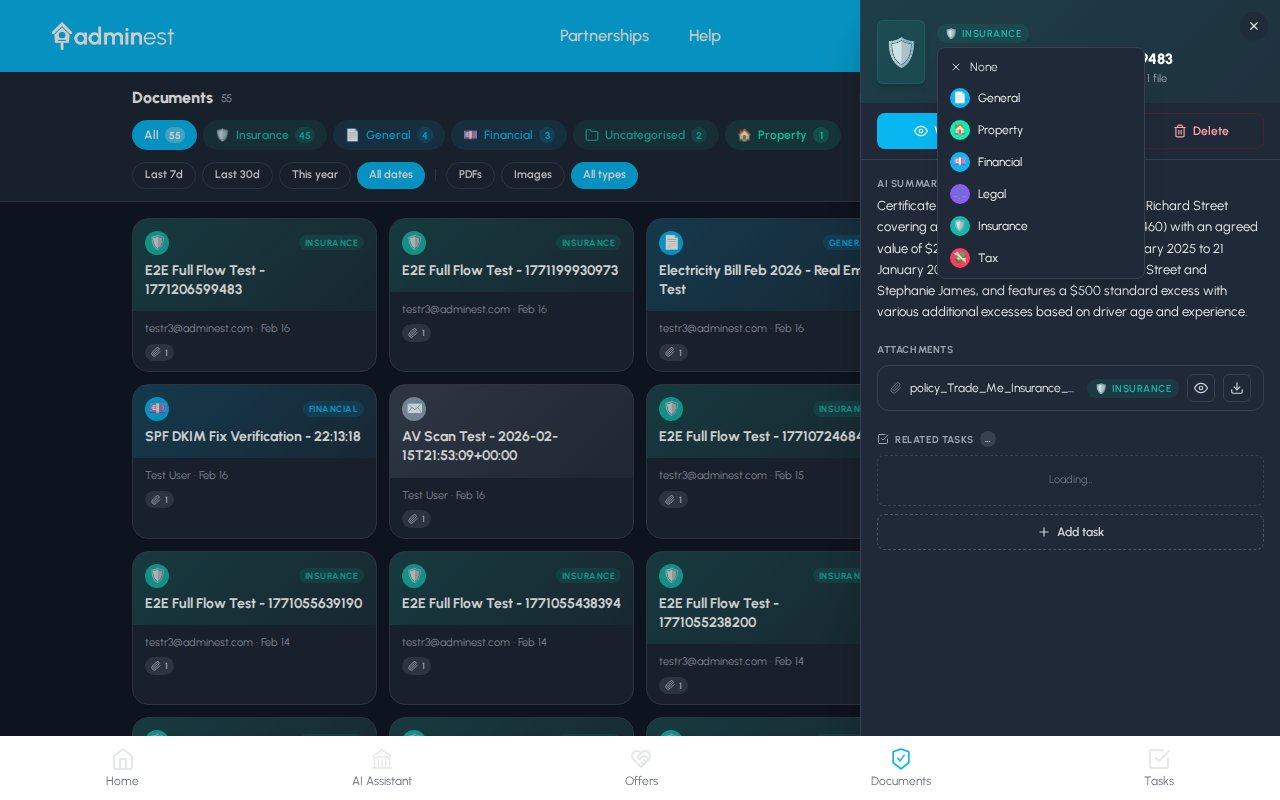 A dropdown appears just below the card.
Start typing — existing categories filter as you type. Click one to add it to the document.
If nothing matches, hit **Create "Name"** and the new category is added instantly. You can [give it an emoji and colour](/guide/account#category-emoji-and-colour) afterwards from Settings.
Hover a category pill and click the **×** to remove it.
Changes are saved as soon as you make them and the colour-coded pill appears everywhere — sidebar, tasks, calendar.
Categories on email groups apply to every document inside that group, and group cards show the combined set of categories from all attached documents.
## Bulk actions
Hold **Shift** + click, or tick the checkbox on a card, to start a selection. A floating action bar appears at the bottom of the screen.
A dropdown appears just below the card.
Start typing — existing categories filter as you type. Click one to add it to the document.
If nothing matches, hit **Create "Name"** and the new category is added instantly. You can [give it an emoji and colour](/guide/account#category-emoji-and-colour) afterwards from Settings.
Hover a category pill and click the **×** to remove it.
Changes are saved as soon as you make them and the colour-coded pill appears everywhere — sidebar, tasks, calendar.
Categories on email groups apply to every document inside that group, and group cards show the combined set of categories from all attached documents.
## Bulk actions
Hold **Shift** + click, or tick the checkbox on a card, to start a selection. A floating action bar appears at the bottom of the screen.
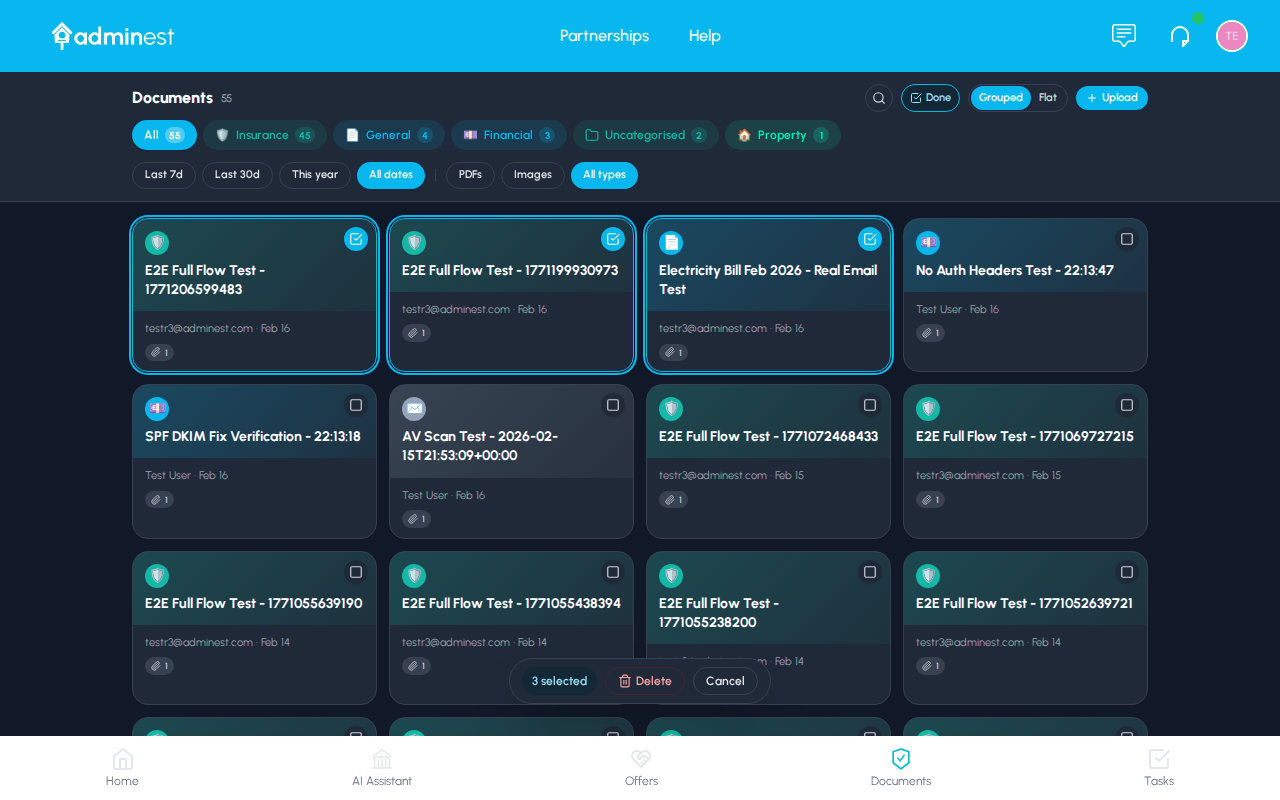 From the bulk bar you can:
| Action | What it does |
| -------------- | --------------------------------------------------------------- |
| **Categorize** | Apply one or more categories to every selected document at once |
| **Download** | Download originals as a single ZIP |
| **Share** | Share the selection with a [connection](/guide/connections) |
| **Delete** | Move the selection to the bin (you'll be asked to confirm) |
| **Clear** | Deselect everything and dismiss the bar |
Deleting a document also removes its AI analysis and any tasks Adminest created from it. This can't be undone.
## AI analysis: what gets extracted
When you upload or forward a document, Adminest automatically:
* **Identifies the type** — insurance, bill, contract, medical letter, statement, etc.
* **Extracts the key fields** — names, amounts, dates, policy numbers, account numbers
* **Writes a plain-English summary** — a paragraph anyone in your house could understand
* **Suggests tasks** — renewals, payments, follow-ups, anything with a deadline
- Policy number and insurer
- Cover period (start and end dates)
- Annual premium and excess
- Sum insured and coverage type
- **Suggested task:** Renewal reminder before expiry
* Amount due and due date
* Payee / vendor name
* Account or customer number
* Usage / billing period
* **Suggested task:** Payment reminder a few days before the due date
* Parties involved
* Key dates (start, end, renewal)
* Important terms and break clauses
* **Suggested task:** Renewal or review reminder
* Provider and date of service
* Diagnosis or procedure
* Follow-up requirements
* **Suggested task:** Follow-up appointment reminder
Adminest's AI is good but not perfect. Always glance over the extracted dates and amounts before accepting a task — especially for anything with money attached.
## Sharing with connections
You can share any document with a [connected](/guide/connections) family member or trusted person.
Click the card to open the detail panel.
The **Share** button is at the top of the detail panel.
Choose one or more connections — they need to have accepted your connection invite first.
View-only, or allow them to manage the related tasks too.
## Best practices
Forwarded PDFs give much cleaner extraction than phone photos of letters.
A single PDF that contains two unrelated documents will be processed as one — split them before uploading.
Glance over extracted due dates — Adminest is usually right but always worth a quick check.
When you import a batch of old documents, select them all and apply categories in one go.
## Related features
Manage the tasks Adminest creates from your documents
Forward emails to bring documents in automatically
Ask questions across everything you've uploaded
Customise your category emojis and colours
From the bulk bar you can:
| Action | What it does |
| -------------- | --------------------------------------------------------------- |
| **Categorize** | Apply one or more categories to every selected document at once |
| **Download** | Download originals as a single ZIP |
| **Share** | Share the selection with a [connection](/guide/connections) |
| **Delete** | Move the selection to the bin (you'll be asked to confirm) |
| **Clear** | Deselect everything and dismiss the bar |
Deleting a document also removes its AI analysis and any tasks Adminest created from it. This can't be undone.
## AI analysis: what gets extracted
When you upload or forward a document, Adminest automatically:
* **Identifies the type** — insurance, bill, contract, medical letter, statement, etc.
* **Extracts the key fields** — names, amounts, dates, policy numbers, account numbers
* **Writes a plain-English summary** — a paragraph anyone in your house could understand
* **Suggests tasks** — renewals, payments, follow-ups, anything with a deadline
- Policy number and insurer
- Cover period (start and end dates)
- Annual premium and excess
- Sum insured and coverage type
- **Suggested task:** Renewal reminder before expiry
* Amount due and due date
* Payee / vendor name
* Account or customer number
* Usage / billing period
* **Suggested task:** Payment reminder a few days before the due date
* Parties involved
* Key dates (start, end, renewal)
* Important terms and break clauses
* **Suggested task:** Renewal or review reminder
* Provider and date of service
* Diagnosis or procedure
* Follow-up requirements
* **Suggested task:** Follow-up appointment reminder
Adminest's AI is good but not perfect. Always glance over the extracted dates and amounts before accepting a task — especially for anything with money attached.
## Sharing with connections
You can share any document with a [connected](/guide/connections) family member or trusted person.
Click the card to open the detail panel.
The **Share** button is at the top of the detail panel.
Choose one or more connections — they need to have accepted your connection invite first.
View-only, or allow them to manage the related tasks too.
## Best practices
Forwarded PDFs give much cleaner extraction than phone photos of letters.
A single PDF that contains two unrelated documents will be processed as one — split them before uploading.
Glance over extracted due dates — Adminest is usually right but always worth a quick check.
When you import a batch of old documents, select them all and apply categories in one go.
## Related features
Manage the tasks Adminest creates from your documents
Forward emails to bring documents in automatically
Ask questions across everything you've uploaded
Customise your category emojis and colours