> ## Documentation Index
> Fetch the complete documentation index at: https://docs.adminest.com/llms.txt
> Use this file to discover all available pages before exploring further.
# Connections
> Share documents and collaborate with family members
## Overview
Connections let you share documents with family members, caregivers, or trusted advisors. Once connected, you can share specific documents and collaborate on managing life admin together.
Send invitations to connect
Choose what to share with whom
 ## Inviting Connections
Click **Connections** in the navigation sidebar
Select the **Invite Someone** button
Add their email address and optionally their name
Select the relationship type (family, caregiver, advisor)
Optionally include a personal message
Click **Send Invitation**
The invited person will receive an email with instructions to create an Adminest account (if they don't have one) and accept your connection.
## Managing Invitations
### Pending Invitations
View invitations you've sent that haven't been accepted yet:
* See when the invitation was sent
* Resend if needed
* Cancel pending invitations
### Accepting Invitations
When someone invites you:
1. You'll receive an email notification
2. Log into Adminest
3. Go to Connections > Pending
4. Click **Accept** or **Decline**
## Sharing Documents
Once connected, you can share specific documents:
Navigate to the document you want to share
Select **Share** in the document actions
Choose which connections should have access
**View only** - Can see document and details
**Manage** - Can also manage related tasks
Click **Share** to grant access
### Bulk Sharing
Share multiple documents at once:
1. Select documents using checkboxes
2. Click **Share Selected**
3. Choose connections and permissions
4. Confirm
## Managing Connections
### View Connected Users
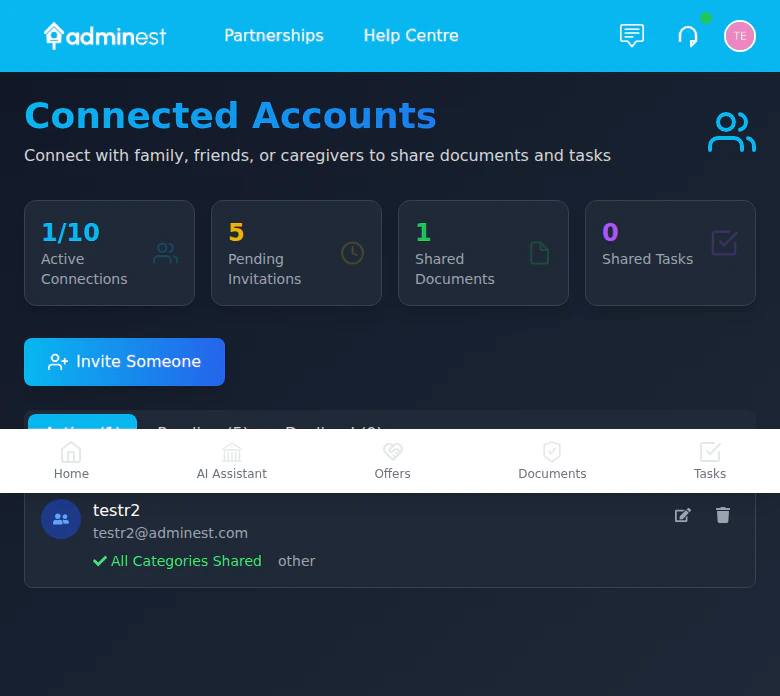
Your Connections page shows:
* Active connections with access details
* What's shared with each connection
* When the connection was established
### Edit Sharing Settings
Modify what's shared with a connection:
1. Click on the connection
2. Select **Edit Sharing Settings**
3. Add or remove shared documents
4. Update permissions
### Remove Connection
Removing a connection immediately revokes their access to all shared documents.
Open your Connections page
Locate the person you want to remove
Select **Remove** and confirm
## Co-Managing Shared Content
Documents shared with you by connected users appear automatically on your **Documents** page alongside your own documents. Shared documents are marked with a purple **Shared** badge so you can easily identify them.
**What you can do with shared documents and tasks:**
* View, download, and manage document details
* Archive or delete shared documents
* Update categories on shared documents
* Complete, update, or delete shared tasks
* Sync shared tasks to your Google Calendar
* Select shared documents for bulk actions
When you modify shared content (e.g., complete a task or delete a document), the owner automatically receives a notification so both users stay in sync.
## Connection Dashboard
The Connections page shows:
| Metric | Description |
| ----------------------- | ----------------------------- |
| **Active Connections** | Number of connected users |
| **Pending Invitations** | Invitations awaiting response |
| **Shared Documents** | Total documents shared |
| **Shared Tasks** | Tasks visible to connections |
## Privacy & Security
Share specific documents, not everything
Remove access instantly when needed
**Key privacy features:**
* Connections can only see documents you explicitly share
* Connected users can co-manage shared content
* Remove access at any time
* Audit log of who accessed what
## Use Cases
Share insurance policies, warranties, and important documents with your spouse or partner so both can access when needed.
Help manage a parent's documents and tasks. They share access with you so you can help track medical appointments and bill payments.
Share relevant financial documents with your accountant or financial advisor during tax season.
## Related Features
Manage documents before sharing
Shared documents can have shared tasks
## Inviting Connections
Click **Connections** in the navigation sidebar
Select the **Invite Someone** button
Add their email address and optionally their name
Select the relationship type (family, caregiver, advisor)
Optionally include a personal message
Click **Send Invitation**
The invited person will receive an email with instructions to create an Adminest account (if they don't have one) and accept your connection.
## Managing Invitations
### Pending Invitations
View invitations you've sent that haven't been accepted yet:
* See when the invitation was sent
* Resend if needed
* Cancel pending invitations
### Accepting Invitations
When someone invites you:
1. You'll receive an email notification
2. Log into Adminest
3. Go to Connections > Pending
4. Click **Accept** or **Decline**
## Sharing Documents
Once connected, you can share specific documents:
Navigate to the document you want to share
Select **Share** in the document actions
Choose which connections should have access
**View only** - Can see document and details
**Manage** - Can also manage related tasks
Click **Share** to grant access
### Bulk Sharing
Share multiple documents at once:
1. Select documents using checkboxes
2. Click **Share Selected**
3. Choose connections and permissions
4. Confirm
## Managing Connections
### View Connected Users
Your Connections page shows:
* Active connections with access details
* What's shared with each connection
* When the connection was established
### Edit Sharing Settings
Modify what's shared with a connection:
1. Click on the connection
2. Select **Edit Sharing Settings**
3. Add or remove shared documents
4. Update permissions
### Remove Connection
Removing a connection immediately revokes their access to all shared documents.
Open your Connections page
Locate the person you want to remove
Select **Remove** and confirm
## Co-Managing Shared Content
Documents shared with you by connected users appear automatically on your **Documents** page alongside your own documents. Shared documents are marked with a purple **Shared** badge so you can easily identify them.
**What you can do with shared documents and tasks:**
* View, download, and manage document details
* Archive or delete shared documents
* Update categories on shared documents
* Complete, update, or delete shared tasks
* Sync shared tasks to your Google Calendar
* Select shared documents for bulk actions
When you modify shared content (e.g., complete a task or delete a document), the owner automatically receives a notification so both users stay in sync.
## Connection Dashboard
The Connections page shows:
| Metric | Description |
| ----------------------- | ----------------------------- |
| **Active Connections** | Number of connected users |
| **Pending Invitations** | Invitations awaiting response |
| **Shared Documents** | Total documents shared |
| **Shared Tasks** | Tasks visible to connections |
## Privacy & Security
Share specific documents, not everything
Remove access instantly when needed
**Key privacy features:**
* Connections can only see documents you explicitly share
* Connected users can co-manage shared content
* Remove access at any time
* Audit log of who accessed what
## Use Cases
Share insurance policies, warranties, and important documents with your spouse or partner so both can access when needed.
Help manage a parent's documents and tasks. They share access with you so you can help track medical appointments and bill payments.
Share relevant financial documents with your accountant or financial advisor during tax season.
## Related Features
Manage documents before sharing
Shared documents can have shared tasks