> ## Documentation Index
> Fetch the complete documentation index at: https://docs.adminest.com/llms.txt
> Use this file to discover all available pages before exploring further.
# Account & Categories
> Manage categories, your account, and your data
## Overview
Settings is where you customise Adminest to match how you think about your admin. The two things most people change first are their **categories** (colour, emoji, name) and their **notification** preferences. You can also export everything you have, or permanently delete your account.
Pick an emoji and colour for each category
Download everything as a JSON file
Permanently remove your account and data
Choose what you want to be reminded about
## Category emoji and colour
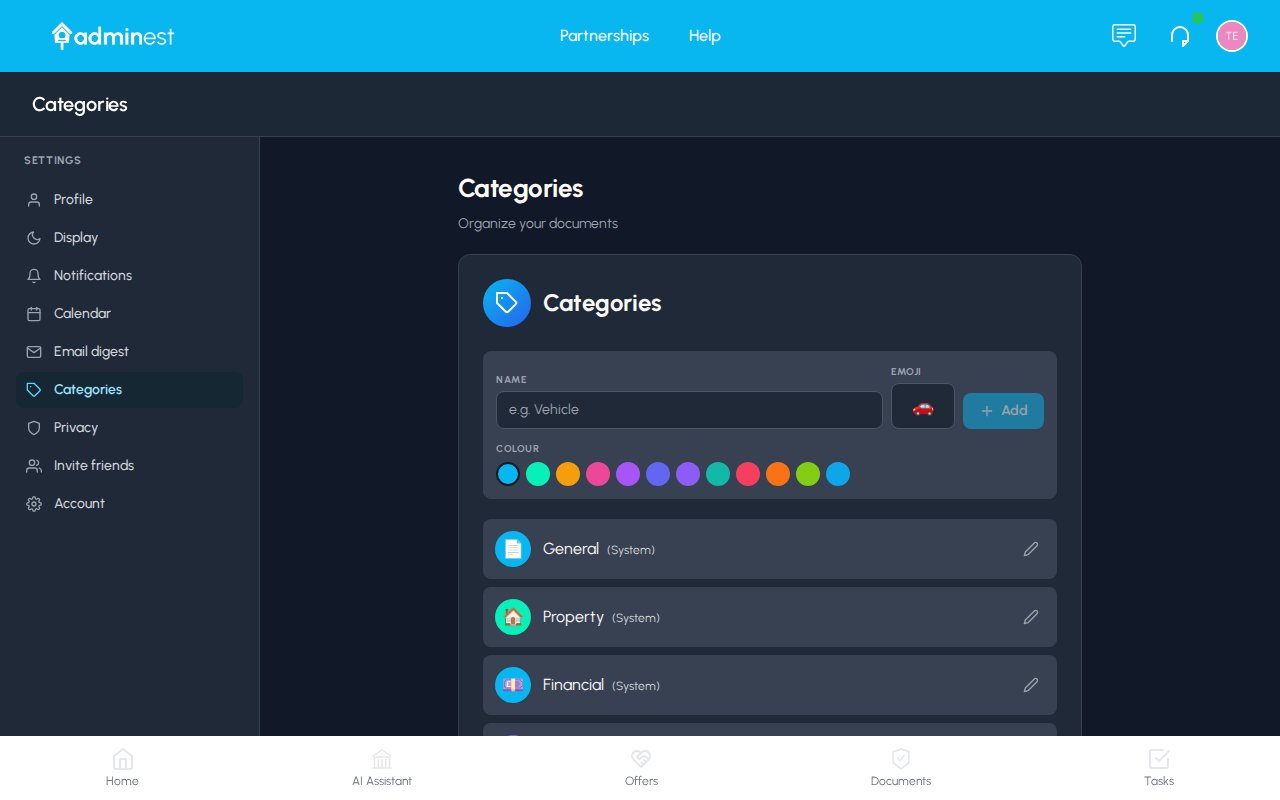
Categories are how Adminest groups your documents and tasks. Each category has a **name**, an **emoji**, and a **colour** — and you control all three. Whatever you pick shows up everywhere: sidebar, document cards, task chips, calendar events.
 ### Adding a new category
Click your avatar → **Settings** → **Categories** tab.
A name input, colour swatch row, and emoji grid appear in the panel on the right.
Keep names short — they have to fit on a small pill on a document card. "School", "Insurance", "Pet" all work well.
Tap any colour swatch and any emoji to see a live preview at the top of the panel.
The new category appears in the list on the left, immediately available to assign to documents and tasks.
### Editing an existing category
Click any category in the list to open it for editing. You can change the name, colour, and emoji at any time. Changes apply instantly to every document and task tagged with that category.
Picking an emoji that suggests the meaning at a glance ("🚗" for Vehicle, "🐾" for Pet) makes filtering by category much faster — you can scan the sidebar without reading.
### Inline creation from documents
You don't have to come to Settings to create a category. On any document card, click the **+** next to the category pills, type a new name, and hit **Create "Name"** — the category is created on the spot. You can come back to Settings later to assign it a colour and emoji.
### Deleting a category
Click the **⋯** menu on any category and choose **Delete**. You'll be asked to confirm — and to decide what happens to the documents and tasks that were using it (un-tag them, or move them to another category).
A small number of categories are created automatically by Adminest when you first sign up (Insurance, Bills, Property…). These are seed categories — you can rename, recolour, re-emoji, or delete any of them.
## Exporting your data
Under the NZ Privacy Act 2020, you have the right to access all personal data we hold about you. Adminest makes this easy with a one-click export.
Click your avatar → **Settings** → **Account** tab.
Adminest compiles a JSON archive and downloads it to your device.
The file includes your profile, documents, tasks, categories, chat history, and email processing records.
The export includes:
* **Profile** — name, email, preferences
* **Documents** — metadata and AI analysis for everything you've uploaded
* **Tasks** — all tasks with due dates, categories, status, and notes
* **Categories** — your custom categories with emoji and colour
* **Chat history** — every AI Assistant conversation
* **Email records** — your email-to-document processing history
## Deleting your account
Account deletion is permanent and cannot be undone. All your data is removed from Adminest, including documents stored in cloud storage.
Open the **Account** tab.
Click **Delete Account**.
Type **DELETE MY ACCOUNT** exactly as shown to confirm. This safeguard prevents accidental deletion.
Once confirmed, all your data is permanently deleted and you'll be signed out automatically.
### What gets deleted
When you delete your account, the following is permanently removed:
* Your user profile and preferences
* All uploaded documents and their cloud-stored files
* All tasks, categories, and AI suggestions
* Every AI Assistant conversation
* Email processing records and your document email alias
* Push notification subscriptions
* Account connections (people you'd shared with)
* Support tickets
* Security and privacy settings
### Before you delete
We recommend **exporting your data** before deleting your account. Once you delete, your data cannot be recovered.
## Related features
See your categories on every document card
Filter and colour-code by category
Manage cookies, GPC, and AI consent
### Adding a new category
Click your avatar → **Settings** → **Categories** tab.
A name input, colour swatch row, and emoji grid appear in the panel on the right.
Keep names short — they have to fit on a small pill on a document card. "School", "Insurance", "Pet" all work well.
Tap any colour swatch and any emoji to see a live preview at the top of the panel.
The new category appears in the list on the left, immediately available to assign to documents and tasks.
### Editing an existing category
Click any category in the list to open it for editing. You can change the name, colour, and emoji at any time. Changes apply instantly to every document and task tagged with that category.
Picking an emoji that suggests the meaning at a glance ("🚗" for Vehicle, "🐾" for Pet) makes filtering by category much faster — you can scan the sidebar without reading.
### Inline creation from documents
You don't have to come to Settings to create a category. On any document card, click the **+** next to the category pills, type a new name, and hit **Create "Name"** — the category is created on the spot. You can come back to Settings later to assign it a colour and emoji.
### Deleting a category
Click the **⋯** menu on any category and choose **Delete**. You'll be asked to confirm — and to decide what happens to the documents and tasks that were using it (un-tag them, or move them to another category).
A small number of categories are created automatically by Adminest when you first sign up (Insurance, Bills, Property…). These are seed categories — you can rename, recolour, re-emoji, or delete any of them.
## Exporting your data
Under the NZ Privacy Act 2020, you have the right to access all personal data we hold about you. Adminest makes this easy with a one-click export.
Click your avatar → **Settings** → **Account** tab.
Adminest compiles a JSON archive and downloads it to your device.
The file includes your profile, documents, tasks, categories, chat history, and email processing records.
The export includes:
* **Profile** — name, email, preferences
* **Documents** — metadata and AI analysis for everything you've uploaded
* **Tasks** — all tasks with due dates, categories, status, and notes
* **Categories** — your custom categories with emoji and colour
* **Chat history** — every AI Assistant conversation
* **Email records** — your email-to-document processing history
## Deleting your account
Account deletion is permanent and cannot be undone. All your data is removed from Adminest, including documents stored in cloud storage.
Open the **Account** tab.
Click **Delete Account**.
Type **DELETE MY ACCOUNT** exactly as shown to confirm. This safeguard prevents accidental deletion.
Once confirmed, all your data is permanently deleted and you'll be signed out automatically.
### What gets deleted
When you delete your account, the following is permanently removed:
* Your user profile and preferences
* All uploaded documents and their cloud-stored files
* All tasks, categories, and AI suggestions
* Every AI Assistant conversation
* Email processing records and your document email alias
* Push notification subscriptions
* Account connections (people you'd shared with)
* Support tickets
* Security and privacy settings
### Before you delete
We recommend **exporting your data** before deleting your account. Once you delete, your data cannot be recovered.
## Related features
See your categories on every document card
Filter and colour-code by category
Manage cookies, GPC, and AI consent